
Easy Ways to Fundraise Online
Use these simple digital fundraising tools to share your story, inspire your network, and make it easier for people to support your ride.
Did you know that 62% of peer-to-peer fundraising is generated online through social media and email? Below are our top fundraising tips that anyone can do from the comfort of their couch. Need more help? Contact our bike team.
Share Your Bike for Brain Health Journey
Bring your friends, family, colleagues and followers along for the ride. The more often you share, the easier it is for people to understand why you are riding and how they can help.
What to share online
- Share a post letting people know you signed up and challenge them to join your team.
- Add a link to your personal fundraising page to your bio.
- Use our email template to reach out to your network.
- Film your training rides.
- Share or remix our Bike for Brain Health Instagram reels.
- Share screenshots of your fundraising progress.
- Share our dementia infographics to communicate the impact of your participation.
- Add your personal fundraising page link every time you post so it is easy for followers to support you.
Bike for Brain Health Impact Infographics
Download and share these graphics to help your network understand the cause behind your ride.

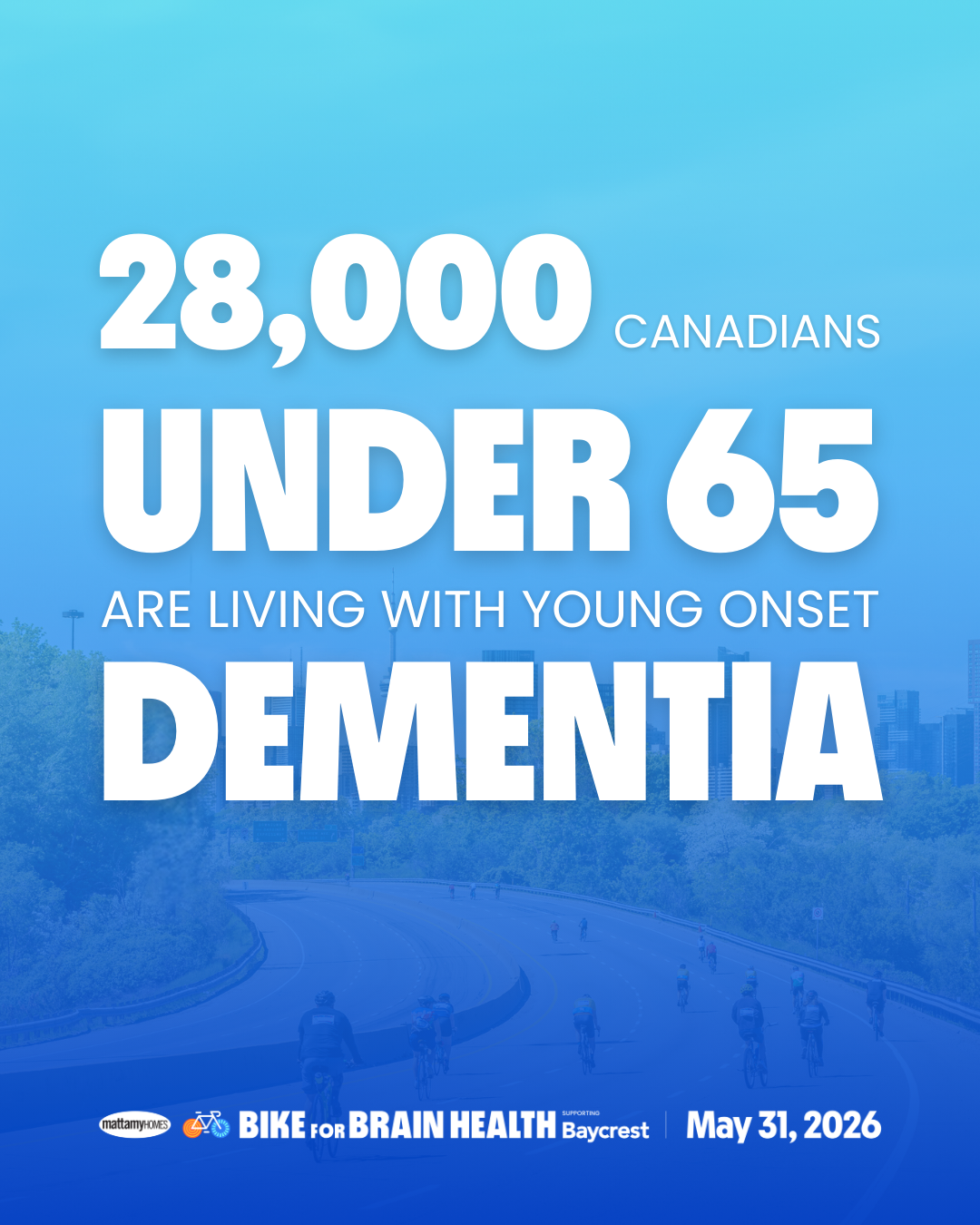
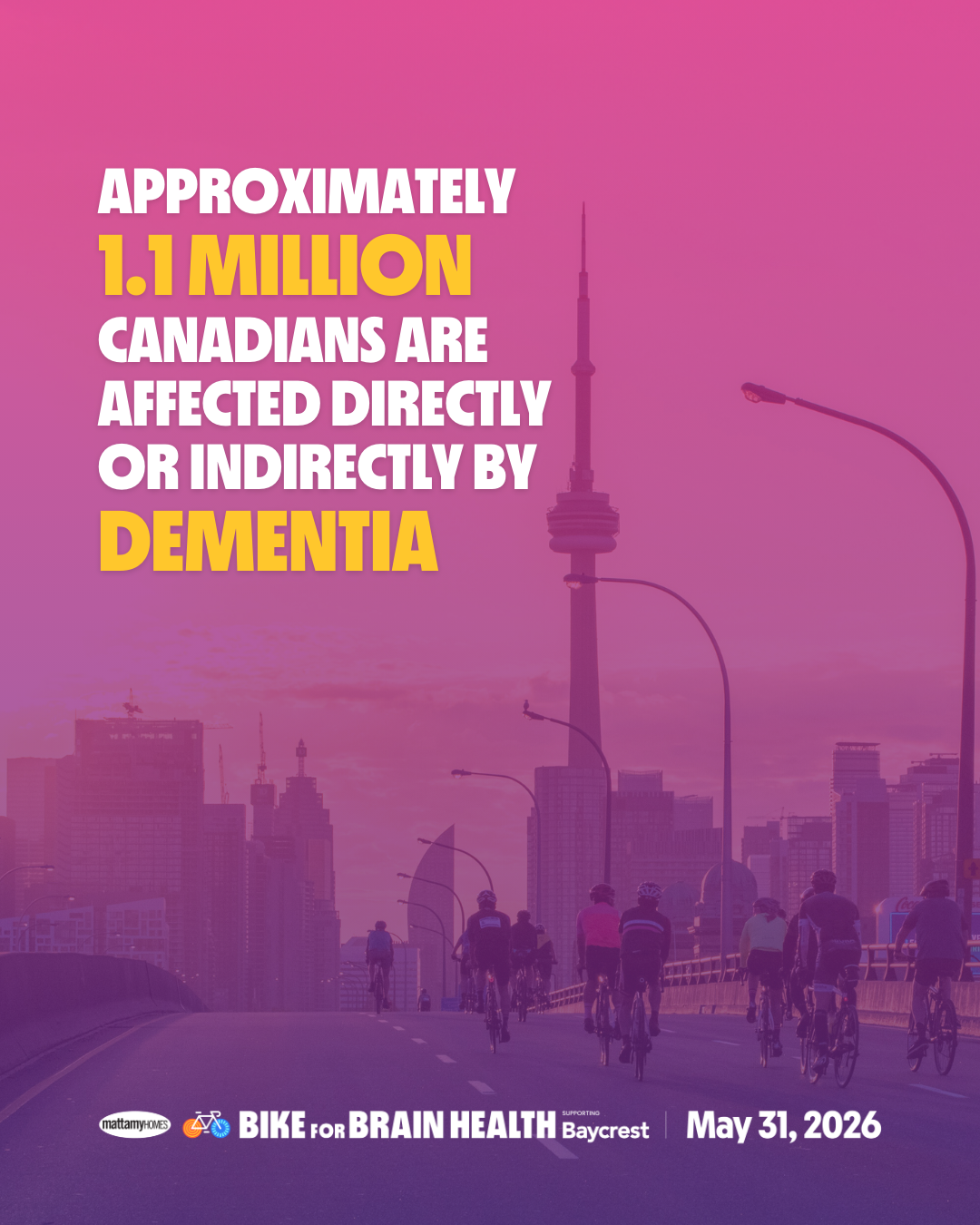






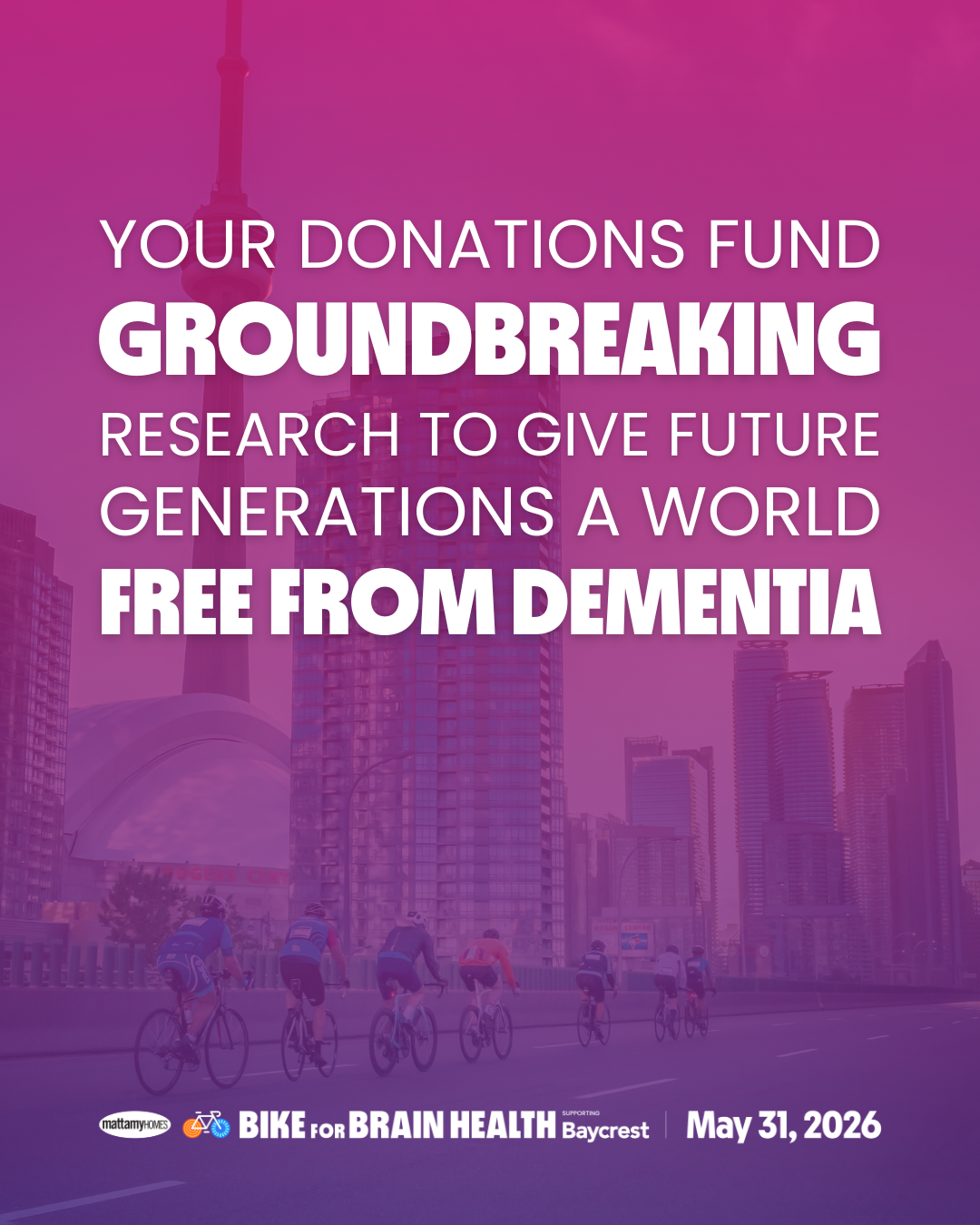

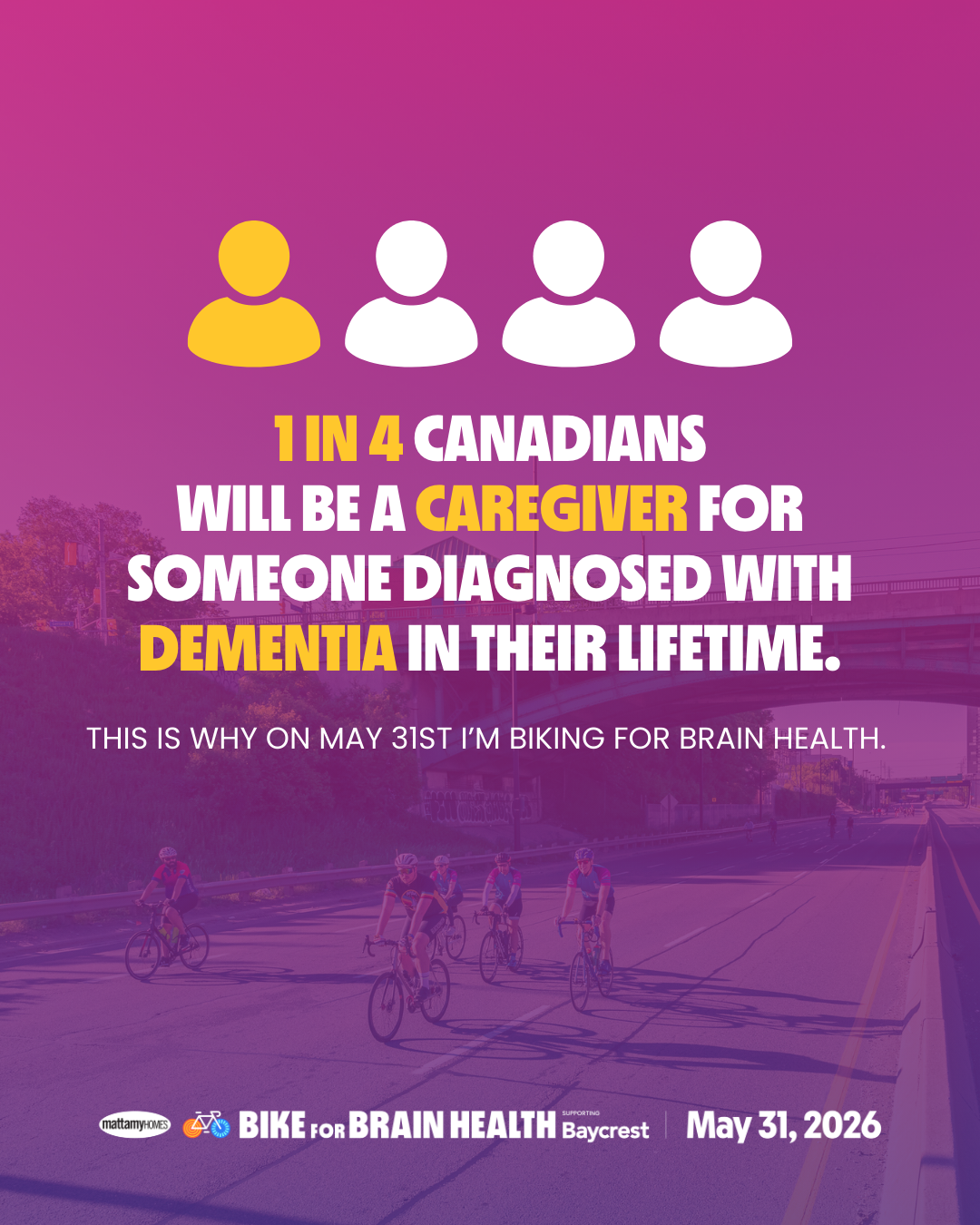
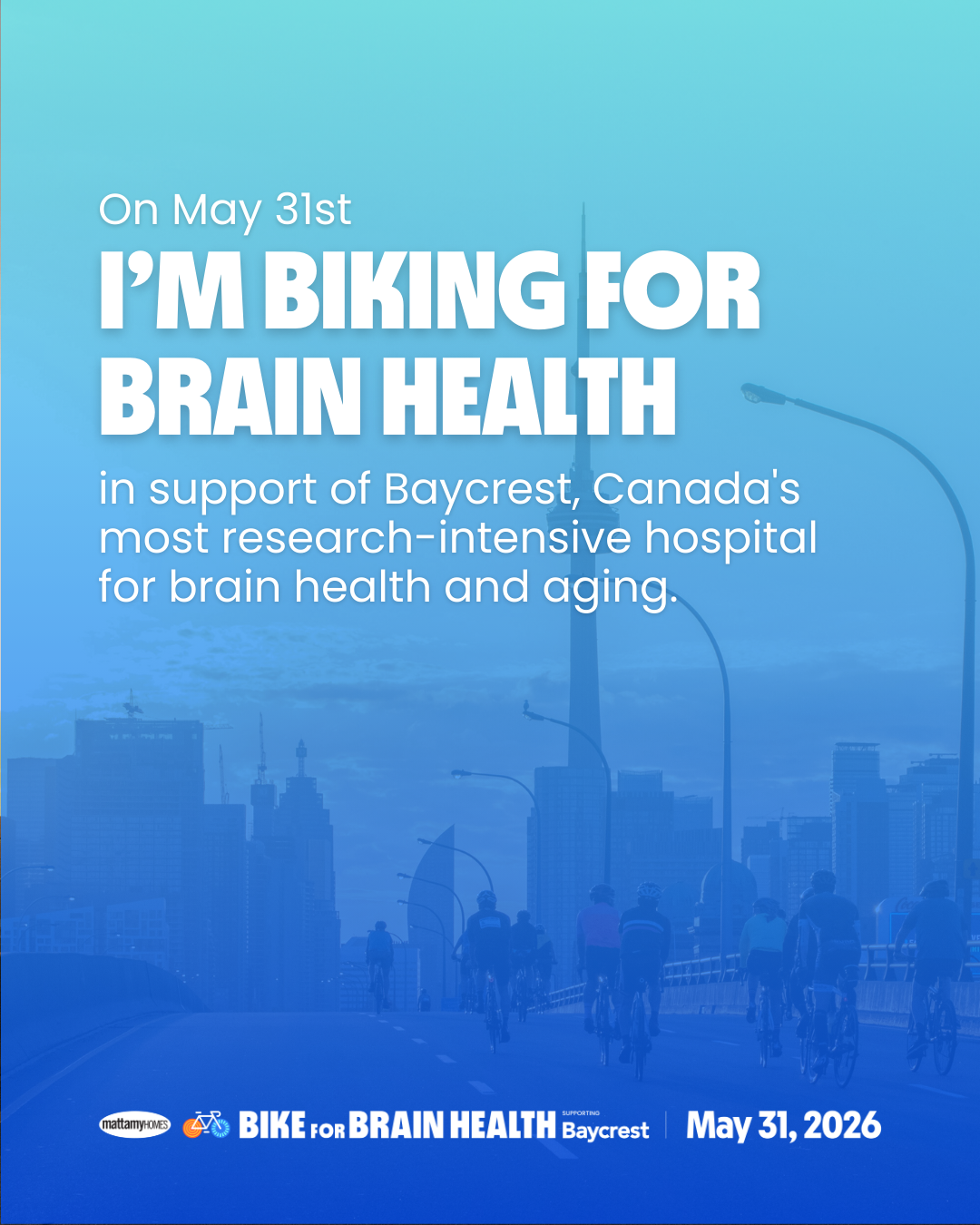
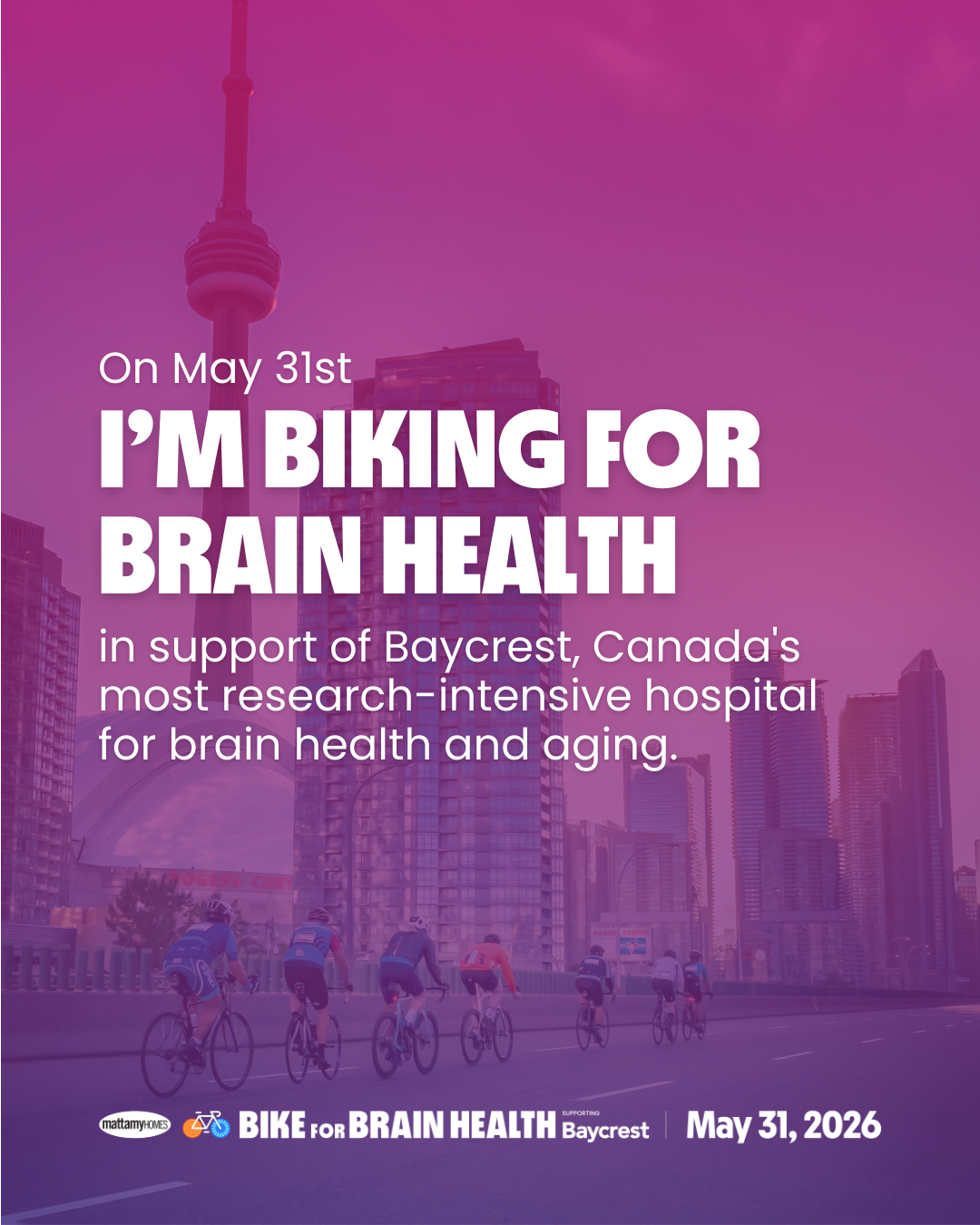
Scroll sideways to view more infographics.
Download Social Media InfographicsAdd a Custom Bike for Brain Health Email Signature
Add the Bike for Brain Health signature to your everyday emails and make each message another opportunity to share your fundraising page.
Instructions for Outlook
- Open Outlook.
- Click Settings (gear icon).
- Select Mail → Compose and reply.
- Type or paste your signature.
- Check the boxes to automatically include it on new emails/replies.
- Click Save.
Instructions for Gmail
- Open Gmail.
- Click Settings (gear icon) → See all settings.
- Under General, scroll to Signature.
- Click Create new.
- Add your signature.
- Scroll down and click Save Changes.
Instructions for Hotmail
- Sign in to Hotmail/Outlook.com.
- Click Settings (gear icon).
- Go to Mail → Compose and reply.
- Add your signature.
- Choose automatic signature options if desired.
- Click Save.
Instructions for Yahoo Mail
- Open Yahoo Mail.
- Click Settings → More Settings.
- Select Writing email.
- Turn on the signature option.
- Type your signature in the box.
- Changes save automatically.
Instructions for Rogers Email
- Sign in to Rogers Webmail.
- Click Settings or Preferences.
- Go to Mail → Signature.
- Enter your signature.
- Save your changes.

Need help with your fundraising?
Our Bike for Brain Health team is here to help you make the most of your page, your posts and your outreach.
Contact the Bike Team





Social Fundraising Checklist
Start with these three quick actions to make your fundraising feel personal, easy and shareable.
Share our Impact Reel
Post the reel and include the link to your personal fundraising page.
Share why you’re biking for brain health
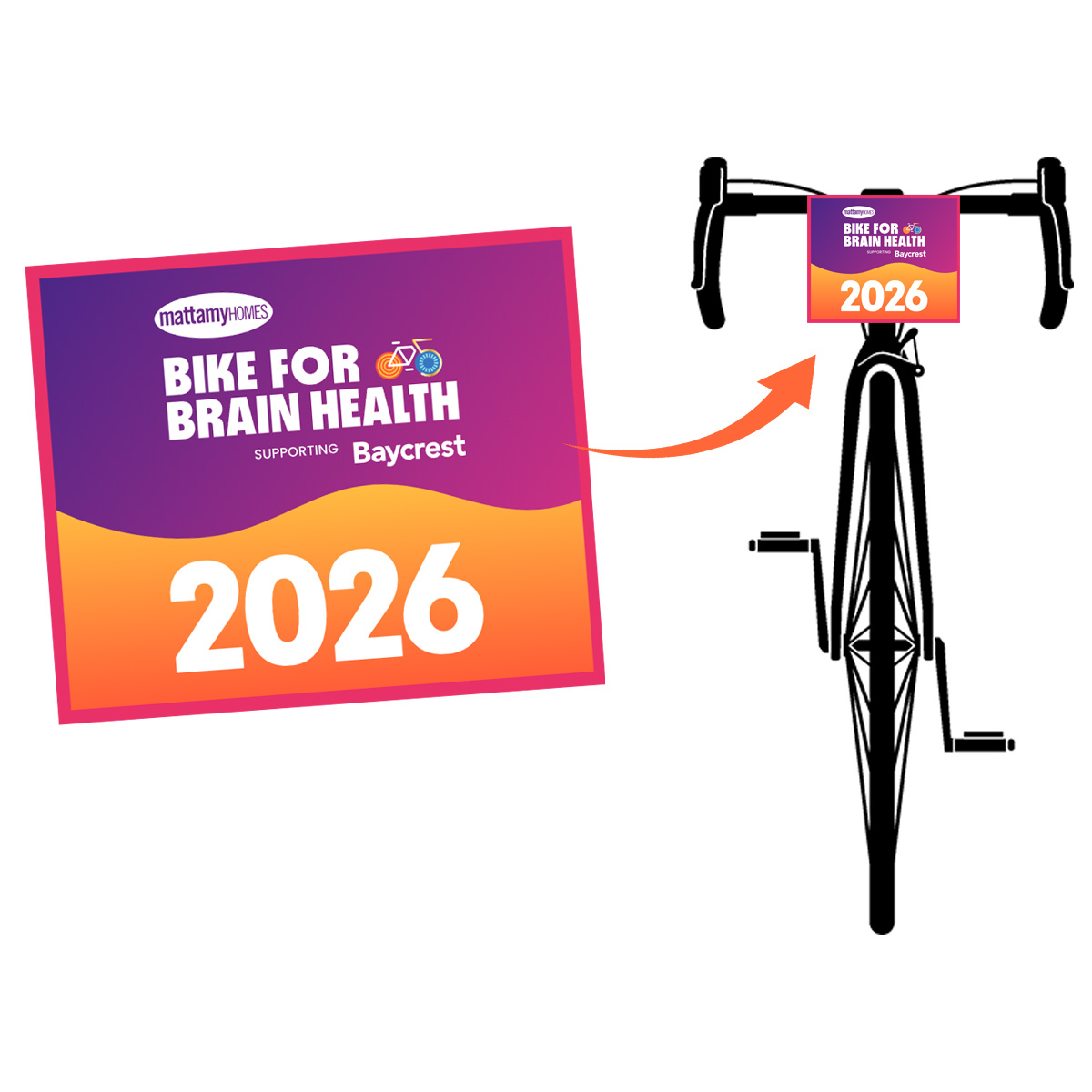
Download our virtual participant bib template to highlight your connection to the cause.
Share your fundraising progress
Post screenshots of your fundraising progress bar and encourage followers to help you close the gap.